BDD Specs
Create, refine, or reuse Jira issue-level acceptance criteria in Gherkin with Atlassian Rovo, manual authoring, or linked existing behaviors, then assess those scenarios against the test evidence Testream captures from your CI/CD runs.
Looking for the broader product overview first? Read BDD Jira integration.
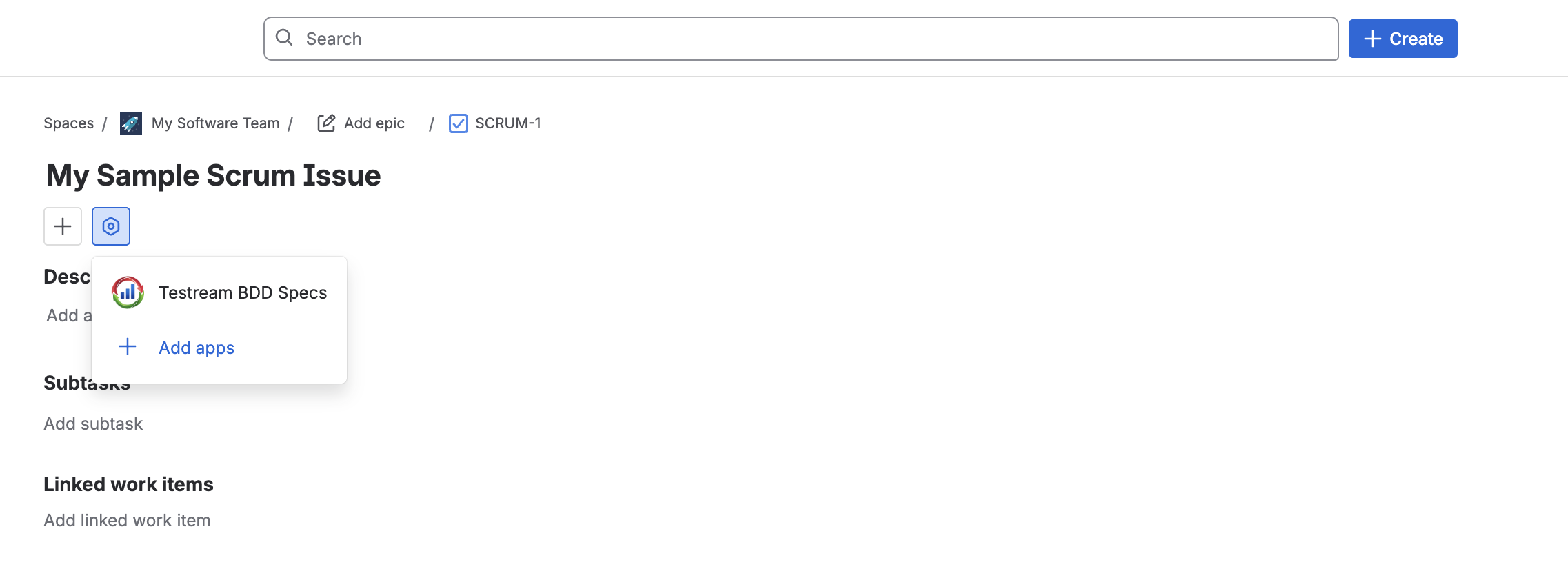
The Testream BDD Specs section is added from the Jira issue detail view. If you do not see it on the issue, open the issue layout controls and add the Testream BDD Specs app to the issue view. Jira can hide app sections behind issue layout settings, so this only needs to be done when the section is not already visible.
What Are BDD Specs?
BDD Specs are feature and scenario descriptions stored in Jira issues. They use familiar Gherkin syntax so teams can describe expected behavior in a format that is easy to read and review:
Feature: Reporter guides redirection

Scenario: 'See reporter guides' button redirects to documentation
  Given I am on the Testream homepage
  When I click the 'See reporter guides' button in the header
  Then I should be redirected to the Testream documentation page
Use BDD Specs to keep requirements, test evidence, and coverage decisions close to the Jira work item they belong to. Testream stores saved specs through the Testream Jira issue panel, then Rovo compares each scenario with candidate evidence captured by Testream reporters, including test names, suites or frameworks, outcomes, steps, source locations, source snippets, failure summaries, attachment names, and scenario or provenance signals.
You can either create a new issue-level spec from scratch, draft one with Rovo, or link an existing reusable behavior from BDD Library directly into the issue.
If your team wants a reusable behavior inventory instead of issue-local scenario text, use BDD Library. BDD Specs are best for issue-level drafting and review. BDD Library is better when the same behavior should be reused across multiple Jira issues, Test Cycles, and release reviews.
Workflow
1. Add the BDD Specs panel
Open the Jira issue and add Testream BDD Specs if the panel is not already visible.
2. Create, draft, or reuse a spec
Choose the path that matches the work:
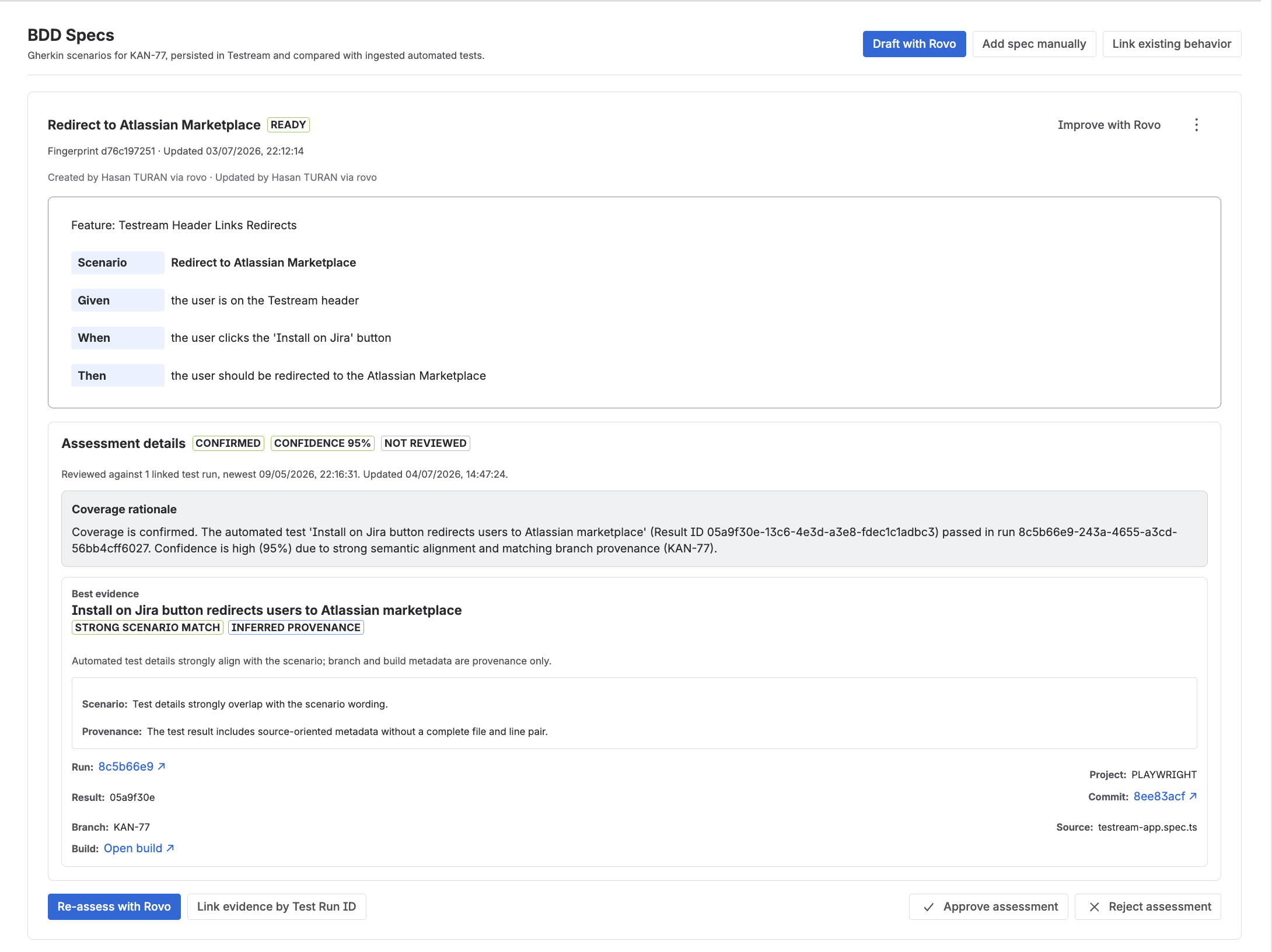
- Select Add spec manually to write a new issue-level scenario yourself.
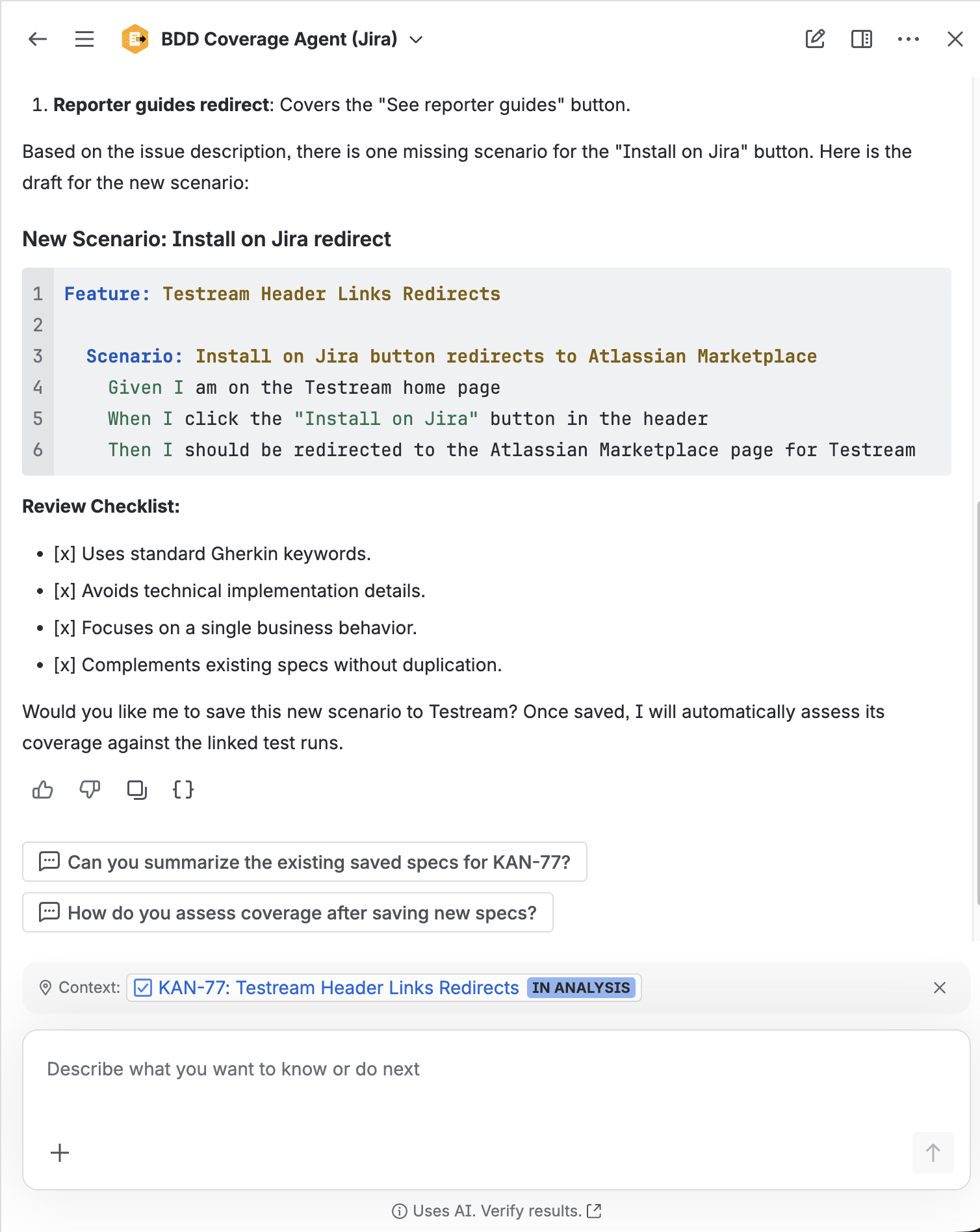
- Select Draft with Rovo to turn rough acceptance criteria into a focused Gherkin scenario. Rovo asks you to approve the exact text before saving it.
- Select Link existing behavior to search the reusable BDD Library and attach one or more behaviors that are not yet linked to this issue.
3. Link existing behavior from the library
Use Link existing behavior when the behavior already exists in BDD Library and should be reused on this issue rather than rewritten.
From the link flow you can:
- Search behaviors not yet attached to the current issue
- Review authored status before linking
- Select multiple behaviors in one action
- Reuse shared behaviors across related Jira work
4. Improve an existing spec
Use Improve with Rovo when the current scenario is too broad, unclear, or not independently testable. Review the proposed Gherkin before saving changes.
5. Assess automated coverage
Select Assess with Rovo or Re-assess with Rovo. Testream sends Rovo bounded evidence for the Jira issue so it can compare the saved Gherkin with matching automated test results. Continue to the BDD Coverage Agent review workflow for the evidence, confidence, provenance, and reviewer controls behind the assessment.
6. Review the assessment
Rovo returns a coverage decision, confidence score, rationale, and best matching evidence. The result can be:
- Confirmed - candidate tests align with the scenario and the source mapping supports the expected behavior.
- Likely - evidence is relevant, but the match is inferred or not strong enough to confirm.
- Not covered - no meaningful automated evidence is available yet.
- Insufficient evidence - one or more required clauses lack clear supporting evidence.
- Conflicting evidence - the available evidence supports and contradicts required clauses.
7. Link evidence manually when needed
If a relevant run was not linked automatically, use Link evidence by Test Run ID. Manual links guide the next assessment, but you should still review the matched tests and rationale before approving the result.
8. Approve or reject the assessment
After reviewing the assessment, approve it when the team accepts the coverage decision or reject it when the scenario needs more work or the evidence is not convincing.
What Rovo Reviews
When you assess coverage, Testream sends Rovo the linked test context for the issue. Rovo reviews the BDD spec against the available evidence and returns a coverage decision, confidence score, rationale, and best matching evidence.
The assessment can use:
- Linked test runs from the Jira issue
- Test names, suites or frameworks, outcomes, and steps
- Source locations and source snippets captured by Testream reporters
- Failure summaries and attachment names
- Scenario-match and provenance details
- Reviewer-linked runs as additional evidence
Best Practices
- Keep each scenario focused on one behavior.
- Prefer concrete
Given,When, andThensteps over broad statements. - Reuse existing behaviors when the same scenario applies across multiple Jira issues.
- Use the latest Testream reporters so source snippets and richer evidence are captured.
- Treat manual links as reviewer guidance, then confirm the matched tests actually cover the scenario.
- Re-assess after changing a BDD spec or adding new tests.
Related Features
- BDD Library
- Test Cycles
- Release Visibility
- Test Run Summaries in Jira Issues
- Test Run Details
- Failure Inspection
- Jira Integration Usage
Next Steps
- Quick Start to prove the first automated run before assessing coverage.
- BDD Library to manage reusable behaviors beyond one Jira issue.
- Use Testream in Jira to review the issue-level workflow around runs and evidence.
- BDD Jira integration for the broader commercial overview.
- Atlassian Marketplace listing to install Testream for Jira.